If you’re having any trouble with accessing our services using patchs then please see below step by step guide, detailing how to setup an account and submit a request.
Please note – this guide was made on PC – not on a mobile device/tablet.
The layout may vary on other devices but all the same buttons/options should still be present.
Please go to https://patchs.ai/practice/stpetersmedicalcentre to begin
Contents:
Step 1 – Accessing patchs
Step 2 – Submitting a request
Step 3 – Our Response
Transferring your PATCHs account from another GP Practice
Step 1 – Accessing patchs
If you have not used patchs before you will need to register an account for yourself.
You do not need any additional details from your GP practice to create a patchs account.
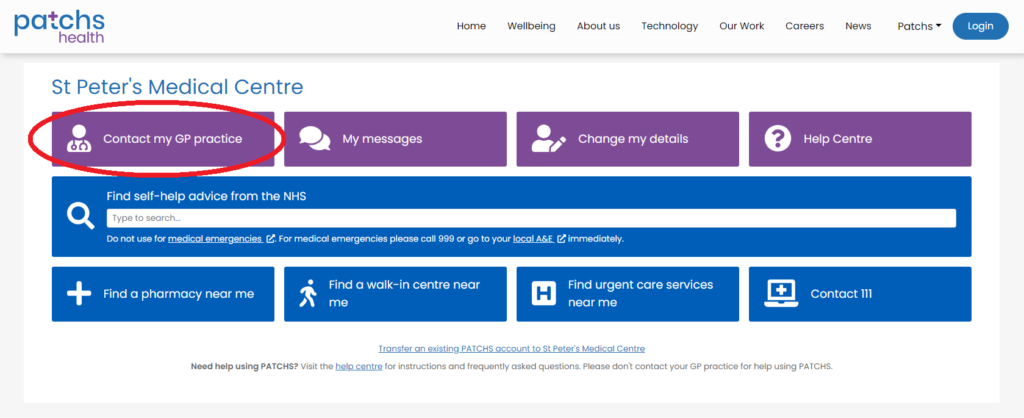
First click “Contact My GP Practice” as shown below:
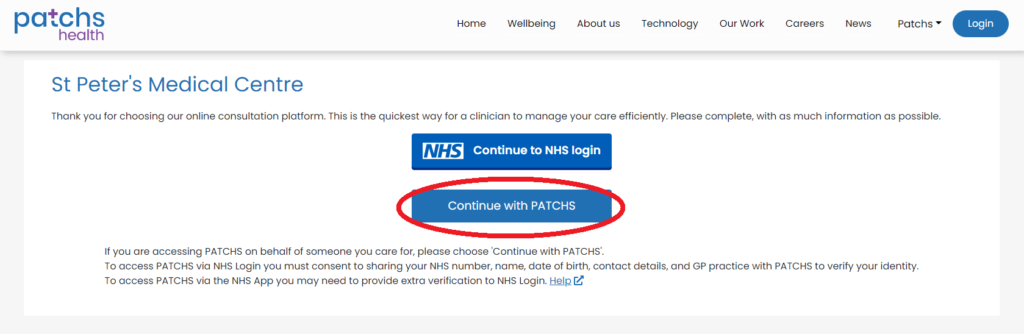
Next click “Continue with PATCHS” (if you already have an NHS login feel free to click NHS login and use that)
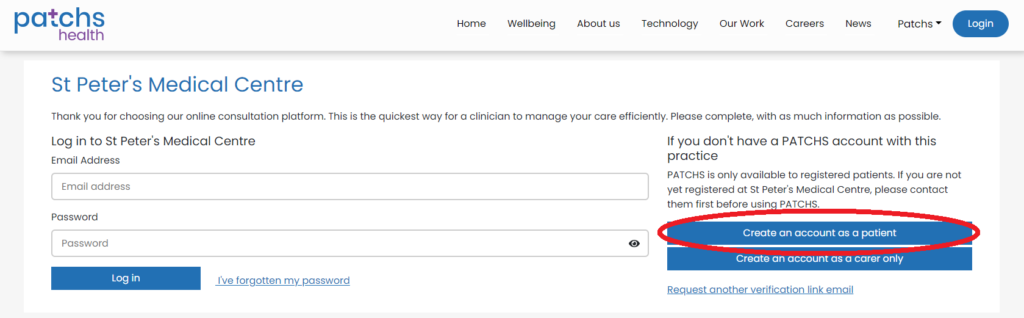
If you have already created an account – please fill in your login details in the relevant boxes and click log in
If you do not yet have an account – please click “Create an account as a patient”
Note: If you are a patient at our practice but want to make a request on someone else’s behalf, please still create the account using your own details, you will have the option later to say that you would like to make a request on behalf of someone else.
You will then be asked to confirm you have read and understood the patchs user agreement and presented a form to fill out with all the details required to register.
Please fill out all the required boxes and click “Create An Account” at the bottom of the page
Once you have created an account you should be able to log in with the email address and password you set.
If you already have an account and cannot remember your password please use the “I’ve forgotten my password” button next to the “Log in” button.
Step 2 – Submitting a request
Before submitting a request please select the language you would like to use, using the drop down bar near the top of the page.
You can submit your request in any language and it will be automatically translated to English for the practice staff.
Please click either “Myself” or “Someone I care for” to submit a request, based on who the request is for.
Using patchs you can request all sorts of things – such as GP appointments, prescriptions, fit notes, medical advice, as well as many other administrative tasks.
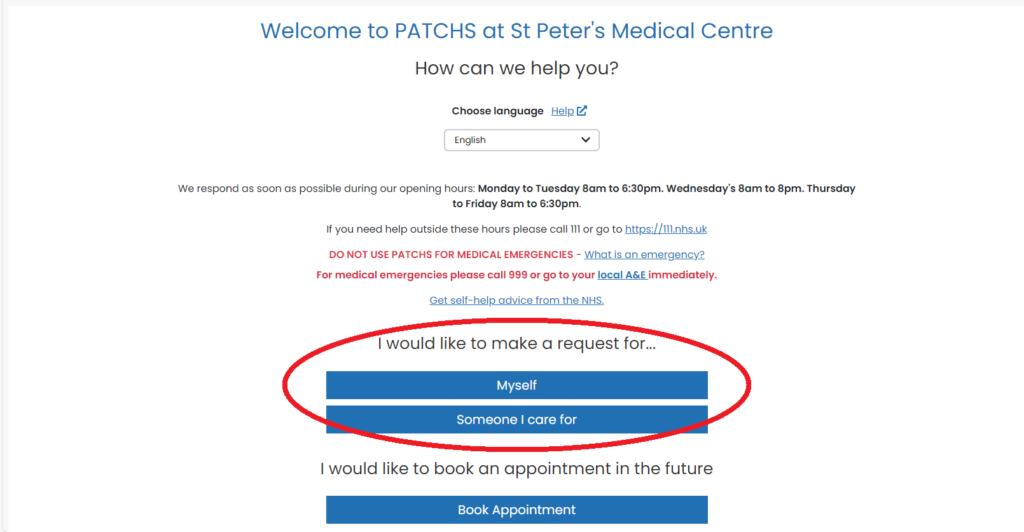
Please DO NOT click the “Book Appointment” button – it is not in use.
We do not operate an open calendar system which allows patients to book in the date and time themselves.
Instead – all requests for appointments are assessed by our clinical triage team, who will review the nature of the medical issue and make a decision about urgency.
Operating in this way allows us to ensure that more urgent requests are seen promptly and that all requests are being assessed first by a trained clinician.
Routine issues will still be handled within a reasonable time.
Please note that when submitting a request you are able to give us information about your availability, which clinicians do take in to consideration when booking an appointment.
If you are submitting a request on behalf of someone you care for, you will need to press “Add someone I care for” and enter their details.
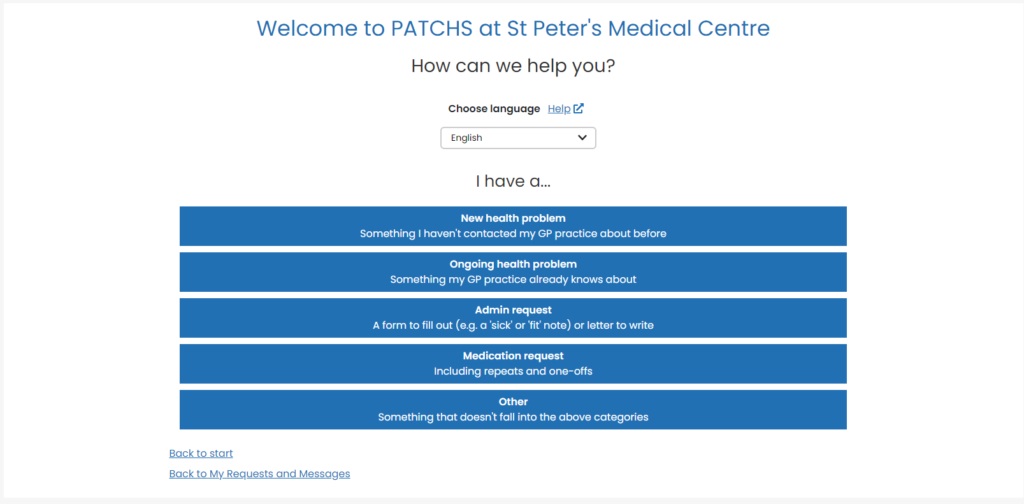
Next you should see the below screen – please select the option that most closely matches the nature of your request.
The questions asked of you will vary based on which box you select.
If none are suitable then please select “Other”
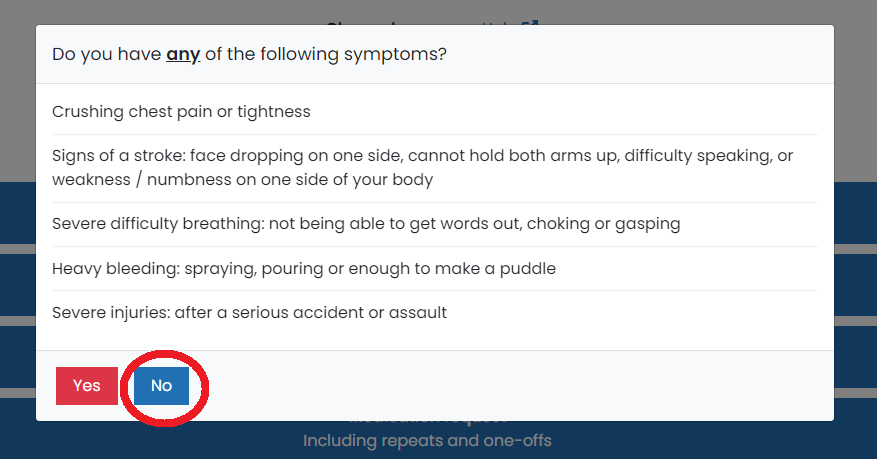
The below screen shows a list of “Red Flag” symptoms which would result in us advising you to seek help from emergency services. As a GP practice we are not the best place to contact first in immediately life threatening situations such as heart attack, stroke or severe physical injury.
If none of the listed symptoms describe your condition then please press “No” and proceed to the request form.
Once you have confirmed your contact details are up to date you will be prompted to answer questions one at a time, detailing the nature of your condition, or your request.
The questions will vary based on what type of request you are making.
Please ensure to give us much detail as possible and answer all the questions – whether submitting a medical or administrative request.
For medical requests it is very important for the clinician to have as much information as possible regarding the issue so that they can appropriately assess the level of urgency with which you should be seen.
If not enough information is given it will simply result in either the reception staff, or clinical staff responding asking for more detail on the issue, which may cause a delay in treatment.
The same is true of administrative requests – if we do not have enough detail about what you are asking for, it can be very difficult to provide helpful answers.
Some examples of requests with not enough detail might be:
“I need a GP appointment” has been copied into the answer box for each question
“I need to chase up my referral” – Which referral? Which hospital? Which department? When was it done? Did we refer you or did someone else?
“I need my medication” – Which medication? What doses? Which pharmacy would you like us to send it to? Is it a new medication recently prescribed by a specialist which we are not aware of?
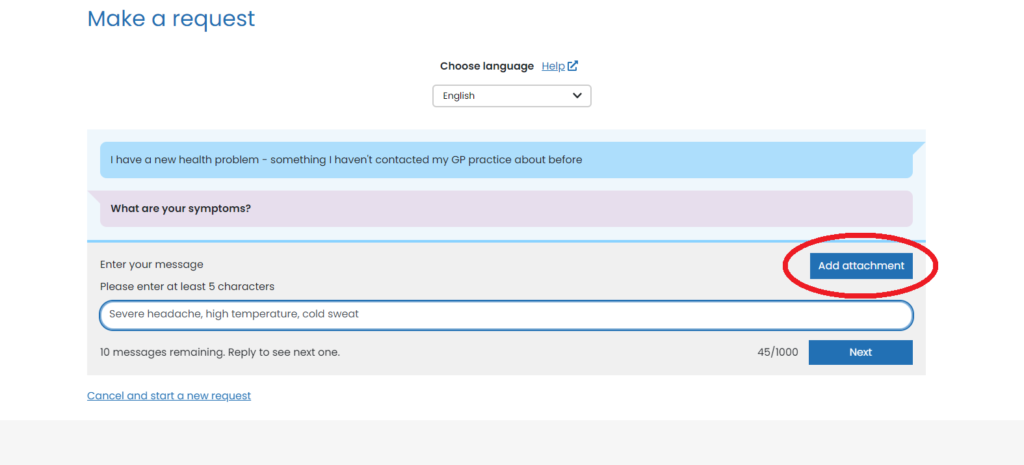
It can also be very helpful to submit photos of the issue if it is visible, such as a rash, swelling, skin discoloration or inflammation – please do not send photos of sensitive areas.
To attach a photo please use the “add attachment” button
Regarding preferences about which GP you see and whether you are seen face to face or receive a phone call; please be aware that our clinicians DO take these preferences in to consideration but may not always be able to fulfil them – if, for example, the issue you are having requires a physical assessment by a doctor, we will not be able to do it as a telephone consultation.
Some of our GPs work part-time so may not always be available on the day of your request.
The last question on the form is regarding your availability for us to contact you.
Please be sure to use this box and let us know if there are any times or days in the near future you will not be available for an appointment – so that our clinicians can make sure to book an appointment that you are able to attend.
Again – we may not always be able to find appointments that match your request – most days our latest appointments are at around 17:30 so it is often difficult to find available slots outside normal 9-5 working hours.
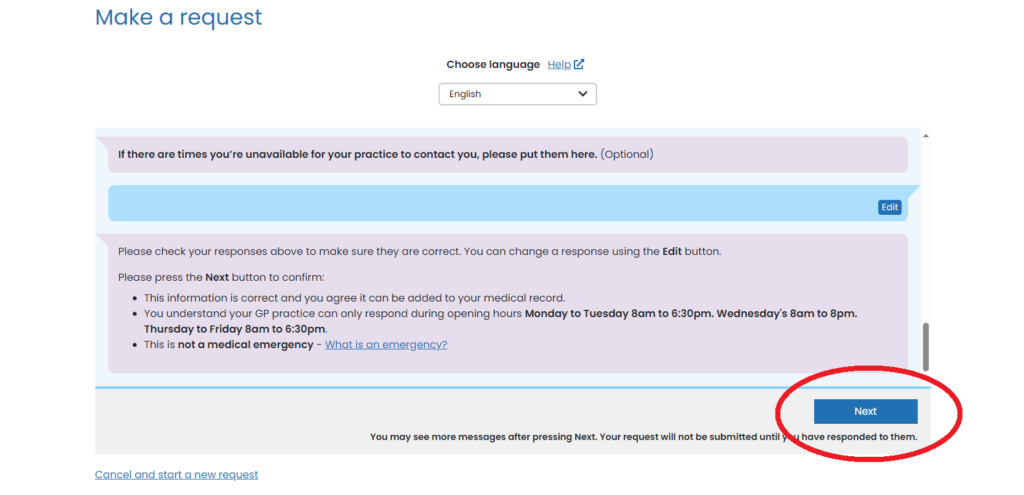
Once you have answered all the questions please click the final “Next” button which will submit your request to the practice:
Step 3 – Our Response
Once your request has been submitted, it will first be received by the reception team, who manage patchs throughout the working day.
If it is an appointment request, it will be added to the clinical triage list, which is monitored throughout the day by a member of the clinical team.
Once they have had time to review it, they may book you in for an appointment – however they may also need to contact you for more information, or may simply respond to give you advice or information – depending on the nature of the request.
When offering an appointment – the clinical team will normally send you a text message with the details of your appointment.
If you are given an appointment that you cannot attend, please call reception on 0208 864 4868 and we can look at rearranging the appointment for you.
If we do not have a mobile number for you, you should receive a call on your landline to inform you of the appointment.
(there is often also a response sent on patchs detailing the date and time of your appointment)
If you are given an appointment at short notice, we will usually call, rather than text – to ensure you are made aware of the booking.
Additional Information
Transferring your patchs account from another GP Practice
Please use the below link for instructions:
Transfer an existing patchs account to St Peter’s Medical Centre use this link for instructions
Transfer to St Peter’s use this link to transfer